How to use augmented reality shows people how to add digital content to real places. This expanded guide explains practical steps, required tools, common use cases, and decisions you’ll make along the way. It covers device checks, app selection, permissions, and hardware options, then walks through detailed workflows for shopping, learning, and work. You’ll also find best practices for lighting, scale, privacy, accessibility, battery and performance, plus troubleshooting steps so you can resolve common issues without guesswork. The tone stays practical and direct so readers can follow the guidance and start applying AR to everyday tasks.
Key Takeaways
- Augmented reality overlays digital content on the real world to improve decision-making, instruction, and productivity across shopping, education, and professional tasks.
- Choose the AR approach that fits your goal—marker-based anchors for printed materials, markerless for flexible placement, and sensor-based for location and motion-aware experiences.
- Set up AR by verifying device compatibility, updating software, granting camera and motion access, and selecting an app that supports the features you need (scale controls, measurements, annotations, or shared sessions).
- Devices vary: modern smartphones and tablets are the most accessible; depth-sensing hardware and AR glasses provide more accurate occlusion and hands-free use for specialized work.
- Follow distinct workflows for retail previews, interactive lessons, and field tasks; each requires slightly different preparation and interaction patterns to get reliable results.
- Maintain optimal performance with good lighting, stable surfaces, calibration of scale and anchors, and regular app/firmware updates. Understand common problems and their fixes so AR stays productive rather than frustrating.
What Augmented Reality Is And Where It’s Useful
Augmented reality (AR) means placing digital content—3D models, annotations, labels, or interactive UI—on top of a live camera view so that virtual elements appear to coexist with real-world objects. The device combines camera input, sensor data, and rendering to anchor and display content in stable positions relative to the environment. AR is useful when visual context improves understanding or decision-making: previewing furniture in a room, overlaying step-by-step repair instructions on machinery, or bringing textbook diagrams to life with interactive 3D models.
When people ask how to use augmented reality, the key decision is matching AR type and interaction model to the task. Marker-based AR uses a printed image, QR code, or fiducial marker as a reliable anchor and is useful for manuals, museum displays, and packaged products. Markerless AR relies on visual feature tracking or environment understanding (plane detection) to place content without a marker—ideal for interior design or trying products in different real-world locations. Sensor-based AR integrates GPS, magnetometer, and inertial sensors to provide geo-anchored or motion-responsive content, which is helpful for navigation, location-based games, or outdoor experiences. Each method has trade-offs in setup, accuracy, and robustness, so picking the right approach improves outcomes.
Device capabilities shape the AR experience. Smartphones and tablets provide the broadest access with many mainstream AR apps and frequent updates. A device with a modern processor, multiple cameras, and, if available, a depth sensor (LiDAR or time-of-flight) will track surfaces more accurately, improve occlusion (objects hiding correctly behind real items), and maintain consistent scale. AR glasses enable hands-free overlays and continuous context for professionals in logistics, maintenance, or medical fields, though they are less common and may require specialized software. Desktop and mixed setups can support AR workflows for content creation or remote collaboration when paired with external cameras and software. Understanding these differences helps you choose the right hardware for your intended AR tasks.
How To Set Up AR On Your Device: Tools, Apps, And Hardware
Start by checking compatibility and preparing your device. Confirm your operating system and device model support the AR framework you need (for example, common AR frameworks for mobile platforms are widely supported on recent devices). Update the OS and any AR frameworks or firmware, then grant camera, motion, and storage permissions when prompted. If the app supports location or Bluetooth, grant those permissions only if you intend to use those features. Allowing unnecessary permissions increases privacy risk, so enable only what’s required for the AR experience.
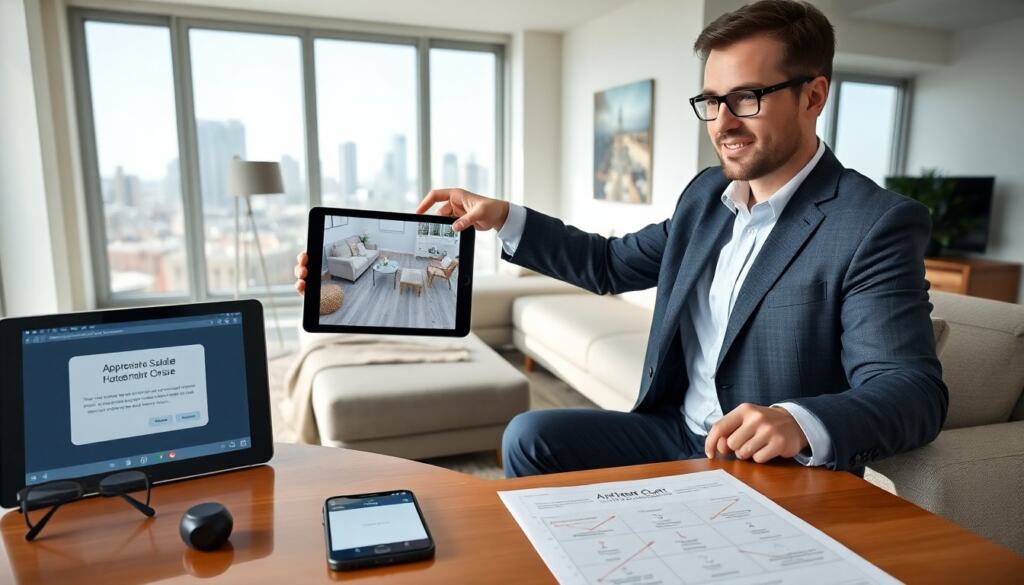
Select tools based on the result you want. For shopping, look for retailer apps that advertise “AR preview” or “place in your room” functionality; these apps typically include scale controls, color or finish options, and sometimes measurement overlays. For learning, prioritize apps with labeled 3D models, narration, and interactive quizzes to reinforce concepts across subjects such as anatomy, chemistry, or historical reconstructions. For work, choose industry-specific apps that support persistent annotations, measurement tools, multi-user sessions, and integration with cloud storage or field-management systems. If you plan to build custom filters or social content, tools like Spark AR or Lens Studio let creators author effects and export them to supported platforms; for more advanced scene or application development, visual editors and game engines can export AR-ready assets or packages.
Consider hardware and accessories that improve reliability and comfort. A device with a faster CPU/GPU and a higher-quality camera reduces lag and improves tracking stability. Depth sensors improve occlusion and accurate placement, especially in cluttered scenes. For prolonged sessions or professional use, accessories can matter: a tripod or stabilizer keeps the camera steady for scanning or measurement tasks; a Bluetooth controller can provide precise input without touching the screen; rugged or hands-free mounts and AR-capable glasses keep hands available for work. Finally, manage battery and performance: AR is compute-intensive, so close background apps, dim screen brightness when possible, and carry a power bank for extended field work.
Step‑By‑Step Workflows: Using AR For Shopping, Learning, And Work
Shopping
- Open the retailer app that supports AR and locate the product listing with an AR preview option.
- Select the item and tap the AR preview or “place in your space” button to launch the camera view.
- Allow camera permission if prompted and scan the target space slowly so the app can detect surfaces and estimate scale.
- Point the camera at the intended space and wait for a placement prompt or grid indicating a detected plane.
- Move the device until the model aligns to scale, then tap to place. Use pinch-to-zoom or on-screen scale controls to fine-tune size and position.
- Rotate and move the model to check clearances, sightlines, and compatibility with existing items; test color, finish, or configuration options where available.
- Use measurement overlays or a built-in ruler if available to verify dimensions; capture photos or short videos to share with others or save to cloud storage for later review.
- If results seem inaccurate, step back, re-scan the area, or relaunch the AR preview to re-anchor. Note lighting and surface reflectivity can affect tracking—adjust as needed.
Learning
- Open the educational AR app and choose the lesson, topic, or 3D model you want to explore.
- Review any on-screen setup tips (some lessons request you scan a marker or a flat surface) and prepare the environment: a clear flat surface and even lighting help detection.
- Scan the surface or marker slowly, then tap to place the model when the app indicates readiness.
- Walk around the model and inspect details from different angles; use labels, annotations, and interactive hotspots to reveal names, functions, or procedural steps.
- Use guided steps or narration to follow a sequence—e.g., disassemble and reassemble a model in stages—pausing playback to test recall or complete related exercises.
- Capture screenshots or record short clips for revision, and sync progress to a learning management system or cloud account if supported for assessment or sharing with instructors.
- For group learning, use multi-user or shared sessions when available so students can compare perspectives or collaborate on the same virtual object in real time.
Work
- Choose a professional AR app that supports annotations, measurements, or persistent anchors for the type of task (inspections, repairs, remote guidance).
- Connect to the cloud or company systems if the app integrates with your workflow so captured images and annotations are stored in the correct project folder.
- Scan the worksite or object systematically: move slowly to let the app build a consistent understanding of the space, and mark key reference points when asked.
- Place annotations, arrows, measurements, and checklists on the live view; lock those annotations to real-world positions so they remain visible from multiple angles and sessions.
- Use the app’s collaboration features—share live views with remote experts, record step-by-step videos, or export annotated images to documentation systems for quality control.
- Capture images or video for record keeping, and ensure files are uploaded to cloud storage or project management tools for team access and audit trails.
- When accuracy matters, validate measurements with a physical tape or laser measure, and recalibrate or re-anchor if drift appears over time.
Best practices
- Check lighting: bright, even light with minimal glare supports consistent tracking and better model rendering.
- Keep surfaces clutter-free: remove small movable objects from the immediate area to improve anchor stability and detection.
- Calibrate scale and anchors when the app prompts: accurate scale is essential for shopping previews and precise measurements.
- Save captures and notes to cloud storage for team sharing and long-term records; use standardized file naming and project folders for easy retrieval.
- Update apps and firmware regularly to get the latest tracking improvements, security patches, and feature changes.
- Consider privacy and data minimization: avoid uploading unnecessary camera footage, and be mindful when scanning private or sensitive areas; follow company policies for data handling in professional settings.
- Design for accessibility: enable captions for narrated content, use high-contrast labels, and provide alternative 2D materials for users who cannot use AR comfortably.
- Manage battery and performance: close background apps, reduce screen brightness, and use power-saving accessories for long sessions.
Common problems and fixes
- Drift or jitter: Restart the app, move slowly to re-establish feature tracking, and re-anchor the content on a well-lit, textured surface. If drift persists, reboot the device to clear sensors and processes.
- Model too large or small: Use on-screen scale controls, step back to give the system more context, or re-scan the scene to improve depth and scale estimation.
- Poor tracking in low light or reflective surfaces: Improve lighting, avoid shiny floors or glass, or place a small matte marker to give the app reliable features to lock onto.
- Permission errors: Open device settings, confirm camera, motion, or location permissions, and restart the app. If permission toggles appear grayed out, check parental controls or enterprise management profiles.
- Performance drops or overheating: Close other apps, lower rendering quality if the app allows it, take short breaks between sessions, and allow the device to cool before resuming.
- Connectivity or cloud sync failures: Verify network access, check app account credentials, and retry uploads later if servers are busy; for critical work flows, keep a local copy until cloud sync is restored.
- Shared session inconsistencies: Ensure all participants use compatible app versions and maintain similar lighting and scanning practices; relaunch the session if anchors become inconsistent between devices.