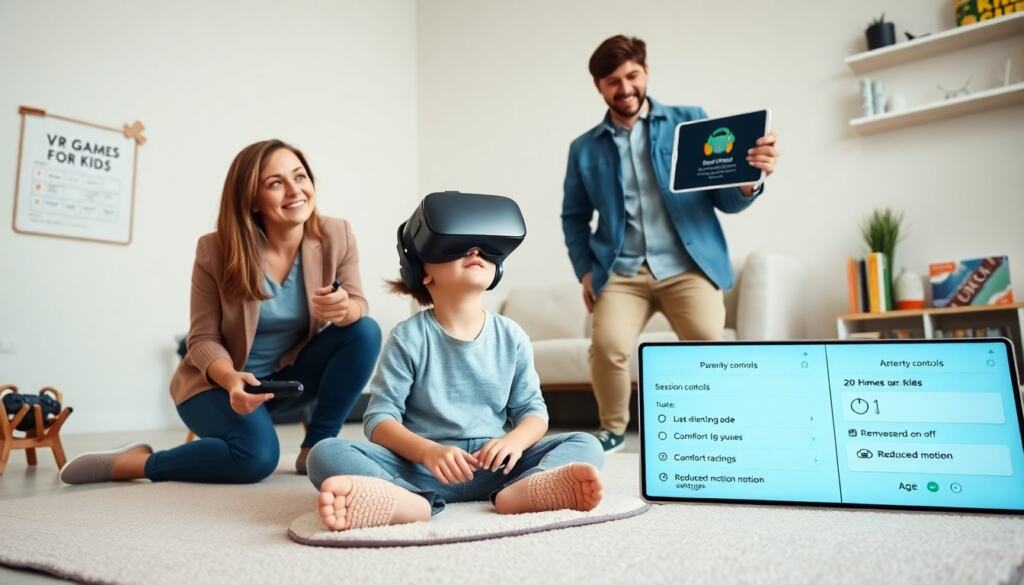
VR games for kids offer play that mixes learning and fun. Parents want safe options. Guardians want clear age guidelines. Developers publish more child-focused titles in 2026. This guide lists top choices. It also gives simple safety steps. Families can use the guide to pick games that match age, comfort, and device limits.
Key Takeaways
- VR games for kids combine learning and fun while requiring parents to prioritize safety and age-appropriate content.
- Choosing the right VR games for kids involves checking age ratings, favoring comfort features like reduced motion and seated play, and ensuring hardware fits well with lightweight, adjustable headsets.
- Top VR games for kids vary by age: calm music and colors for ages 4–6, light-action puzzle games for ages 7–9, and cooperative, moderate-action titles for ages 10–12 with online settings restricted to friends.
- Parents should set up safe play areas, activate parental controls, schedule regular breaks, and monitor children’s reactions to prevent dizziness or discomfort during VR play.
- Keeping VR games for kids safe includes updating firmware, managing privacy settings, teaching proper headset handling, and consulting a pediatrician if discomfort persists.
How To Choose Kid-Friendly VR Games: Age, Safety, And Comfort Guidelines
Parents should check age ratings before they buy any VR games for kids. They should read the official rating and look for publisher notes about motion and content. Experts advise that children under seven should use simple, seated experiences. Caregivers should start with short sessions. They should watch how a child reacts to motion and stop play if the child feels dizzy or upset.
Guardians should favor games with clear safety features. They should choose games that include comfort modes, reduced motion, and seated play options. They should pick titles that allow for easy exit to the main menu. They should also confirm whether the app stores or headsets collect data from the child. They should avoid apps that request unnecessary permissions.
Parents should check hardware fit and weight when they select a headset for VR games for kids. They should buy adjustable straps and soft face pads. They should prefer lightweight headsets for long play. They should ensure lenses sit at the right distance to keep vision clear. They should remove the headset for breaks every 15 to 20 minutes for young children.
Caregivers should test controls before children play. They should choose games with simple controllers or hand-tracking. They should teach children how to pause and remove the headset quickly. They should set up a clear play area with soft edges and no trip hazards. They should supervise play for younger kids.
When evaluating content, look beyond surface-level descriptions. Read multiple user reviews to learn about comfort and real-world play patterns for specific VR games for kids. Watch short clips or play demos to confirm motion levels, camera behavior, and whether the game supports seated or standing modes. If a title includes user-generated content or chat, verify moderation and reporting tools are active and accessible for caregivers.
Consider accessibility and sensory needs when selecting VR games for kids. Some titles offer subtitles, simplified controls, or adjustable audio and visual contrast that can help children with sensory sensitivities or hearing differences. If your child uses glasses, confirm headset compatibility or whether spacer inserts are included. Choosing games with incremental difficulty and clear on-screen guidance helps children build confidence while reducing frustration.
Top VR Games For Kids — Best Picks By Age And Platform
For ages 4–6, caregivers should pick calm, seated VR games for kids that focus on music and colors. Titles like simple music experiences and interactive story apps work well. These games teach cause and effect and they build attention. They require minimal movement and they reduce motion risk.
Examples of features to look for at this age: large, easy-to-read icons, voice narration, and one-touch interactions. Games that combine storytelling with light creative tasks—coloring, simple rhythm play, or matching games—support early learning goals like vocabulary and pattern recognition without overstimulating the child.
For ages 7–9, families can try light-action VR games for kids that include basic exploration and puzzle play. These games encourage problem solving and hand-eye coordination. Recommended picks include family-friendly puzzle adventures and gentle sports titles. They use short levels and clear goals. They let parents control difficulty.
At this stage, look for progression systems that reward learning and persistence rather than fast reflexes. Games that offer split-screen or local co-play let caregivers join in and model safe VR habits. Choose titles with explicit comfort settings and brief level lengths so caregivers can manage session times easily.
For ages 10–12, older children can handle moderate action in VR games for kids that include platforming, cooperative play, and creative building. These games teach strategy and planning. They often include online modes. Parents should enable friend-only or invite-only settings for online play.
For older kids, consider games that teach teamwork or creative problem-solving and that include robust moderation for any online features. Games that unlock creation tools (block builders, music creators, or simple scripting environments) add lasting value and encourage constructive screen time.
Across platforms, some standout titles appear in 2026. For standalone headsets, family game collections and creative sandbox apps remain top picks. For console-tethered systems, party and rhythm games work well for groups. For PC VR, educational sims and science explorers offer depth and learning value. Caregivers should check cross-platform availability and controller needs before they buy.
Before purchasing, caregivers should sample demos where available and check whether the game supports formal or informal parental controls. Make a short trial plan: try a 10–15 minute session, observe for motion sickness signs, and note whether the interface is intuitive for your child’s age.
Setup, Parental Controls, And Healthy Playtime Tips For Safe VR Use
Parents should set up a dedicated play space before a child uses VR games for kids. They should clear furniture and secure cables. They should mark a soft boundary for standing play. They should keep the area well lit so the guardian can watch the child.
Caregivers should activate parental controls on the headset and in each game. They should set account age limits and purchase locks. They should turn off voice chat for younger players. They should use friend-only options for older children. They should link accounts to a parent email where available.
Adults should schedule regular breaks when children play VR games for kids. They should follow a rule like 20 minutes on, 10 minutes off for young users. They should check for eye strain and headaches after each session. They should encourage outdoor play and non-screen activities between VR sessions.
Parents should keep firmware and apps up to date. They should apply software updates that fix bugs and add comfort features. They should review privacy settings after major updates. They should remove games that request unclear permissions.
Caregivers should teach children safe headset handling. They should show how to put on and remove the headset. They should stress gentle handling for the lenses and straps. They should store headsets in a safe place when not in use.
If a child shows persistent discomfort, parents should stop VR games for kids until a doctor clears play. They should consult a pediatrician if symptoms continue.
Practical tips for everyday use: keep a cleaning kit (microfiber cloth and headset-safe cleaner) to keep lenses and face pads hygienic between users; maintain battery health by following manufacturer charging guidance; and keep a spare set of cushioning pads for comfort. Have a visible timer in the room to help children and caregivers follow break schedules and avoid unexpectedly long sessions.
Troubleshooting checklist for common issues: if a child reports blur or double vision, re-seat the headset and adjust IPD or lens spacing; if motion sickness appears, switch to seated or snap-turn locomotion, reduce field of view if the game offers it, and shorten session length; if audio is too loud or confusing, lower volume and enable captions or visual prompts if available.
Encourage co-play and learning outcomes: play together for a first session to model safe use, ask simple reflective questions after play (what did you build or learn?), and link VR activities to offline projects (drawing, storytelling, or building with real-world materials). This helps make VR sessions feel like part of balanced play rather than isolated screen time.