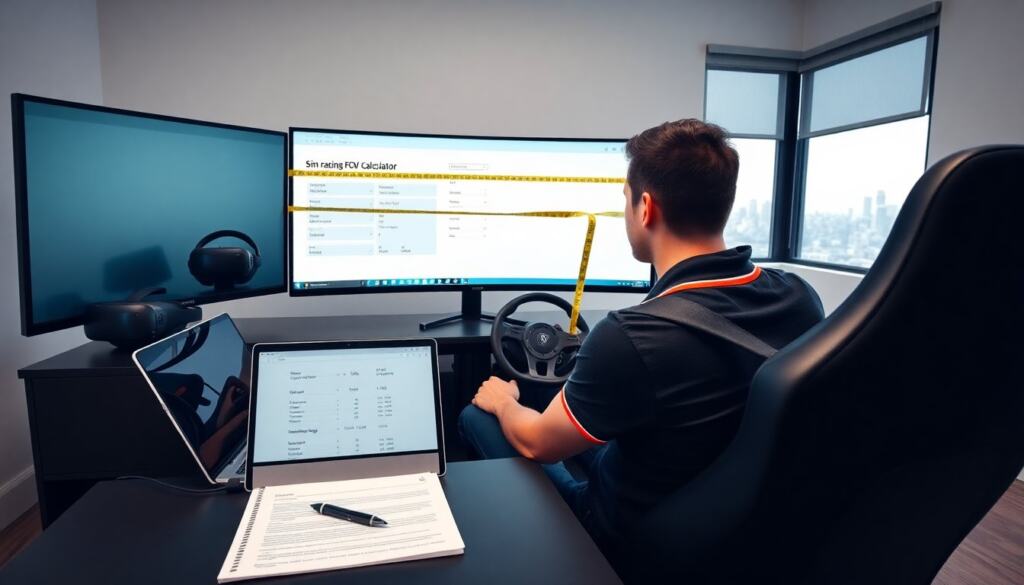
A sim racing FOV calculator helps drivers set the correct field of view for monitors and VR. It prevents scale errors and motion issues. The tool gives a view that matches real-world sight. Users enter seat position, screen size, and distance. The calculator returns horizontal, vertical, and diagonal FOV values. Drivers then apply those values in game settings for accurate perspective.
Key Takeaways
- A sim racing FOV calculator ensures accurate field of view settings by converting real-world measurements into in-game FOV angles, enhancing driving precision and comfort.
- Accurate inputs such as seat position, screen size, and eye distance are essential for precise FOV results and reducing motion sickness in sim racing.
- Drivers can manually calculate horizontal FOV using basic geometry but should cross-check with a calculator for best accuracy, especially for multi-monitor setups.
- Converting between horizontal, vertical, and diagonal FOV requires understanding display aspect ratios, which a sim racing FOV calculator automates to prevent input errors.
- Using an FOV calculator tailored for flat screens or VR headsets optimizes visual scale and immersion, with VR requiring additional adjustments for headset IPD and render scale.
- Common mistakes include incorrect measurements and confusing FOV types; thorough measuring and test sessions help fine-tune settings for comfort and performance.
What Is FOV And Why It Matters In Sim Racing
Field of view (FOV) defines how much of the simulated world a driver sees on screen. A proper sim racing FOV calculator converts real measurements into FOV angles. Incorrect FOV makes objects look too close or too small. The result affects timing, braking points, and comfort. Drivers with wrong FOV report motion sickness and poor depth judgment. Using a calculator reduces those errors. It improves lap consistency and situational awareness. Teams and hobbyists both benefit from matching in-game view to physical setup.
Key Measurements You Need: Seat Position, Screen Size, And Distance
The calculator needs three core measurements. Measure seat position from the screen center along a straight line. Measure screen width for flat displays or the display arc for curved screens. Measure eye height relative to the screen center. Drivers should use inches or centimeters consistently. For multiple monitors, measure from the eye to the center monitor and note side monitor angles. For VR, supply nominal headset-to-eye distance if asked. Accurate inputs produce accurate FOV results. Small input errors change angle values by several degrees.
Step-By-Step Manual FOV Calculation For Single And Triple Monitor Setups
Drivers can compute FOV manually with basic geometry and a sim racing FOV calculator as a check. Step 1: Measure eye-to-screen distance (D). Step 2: Measure screen width (W). Step 3: Calculate half-width: W/2. Step 4: Compute horizontal FOV: 2 * arctan((W/2)/D) in degrees. For triple screens, add side screen angles: treat the combined width as the visible width plus bezel gaps. For angled monitors, project each monitor plane to the eye and sum visible angles. This manual method matches most calculator outputs when measurements are precise.
Converting Between Horizontal, Vertical, And Diagonal FOV
Games often accept vertical or horizontal FOV. Convert using the display aspect ratio. Given horizontal FOV (HFOV) and aspect ratio (AR = width/height), compute vertical FOV (VFOV): VFOV = 2 * arctan(tan(HFOV/2) / AR). To get diagonal FOV, use diagonal ratio and geometry: DFOV = 2 * arctan(tan(HFOV/2) * sqrt(1 + 1/AR^2)). Drivers should confirm the game’s required FOV type before entering values. A sim racing FOV calculator automates these conversions and removes guesswork.
Using An FOV Calculator: Recommended Tools And How To Use Them
Several reliable tools exist for sim racing FOV calculation. The popular web calculators accept metric and imperial inputs and show horizontal, vertical, and diagonal values. Some monitor manufacturers provide a simple calculator tied to model specs. For VR, headset communities post recommended conversion methods and tool profiles. Users should enter exact screen width and eye distance. They should include bezel sizes and monitor tilt for triples. After calculation, drivers should test values in a practice session and adjust minor offsets to personal preference.
FOV Settings For VR Headsets Versus Flat Screens
VR headsets simulate human vision differently than flat screens. Flat screens show a fixed plane at a certain distance. VR presents stereoscopic views and shifts with head motion. A sim racing FOV calculator helps for both, but output interpretation differs. For flat screens, use horizontal FOV values directly in the game. For VR, use the calculator to match perceived scale, then rely on headset IPD and game render scale. Many VR users lower FOV slightly to reduce peripheral distortion. Drivers should test and prefer comfort and scale accuracy over raw numbers.
Common Mistakes, Troubleshooting, And Practical Tuning Tips
People make common input errors when using a sim racing FOV calculator. They measure to the wrong screen edge, omit bezel width, or use screen diagonal instead of width. They paste HFOV into a game that expects VFOV. To troubleshoot, remeasure distance to the eye and screen center. Use a tape measure and a level for eye height. For triple setups, test with a reference car and known braking point to verify scale. If drivers feel motion sickness, reduce FOV by a few degrees. Record final values for each game and update them after hardware changes.